
Your best plays, saved after they happen.
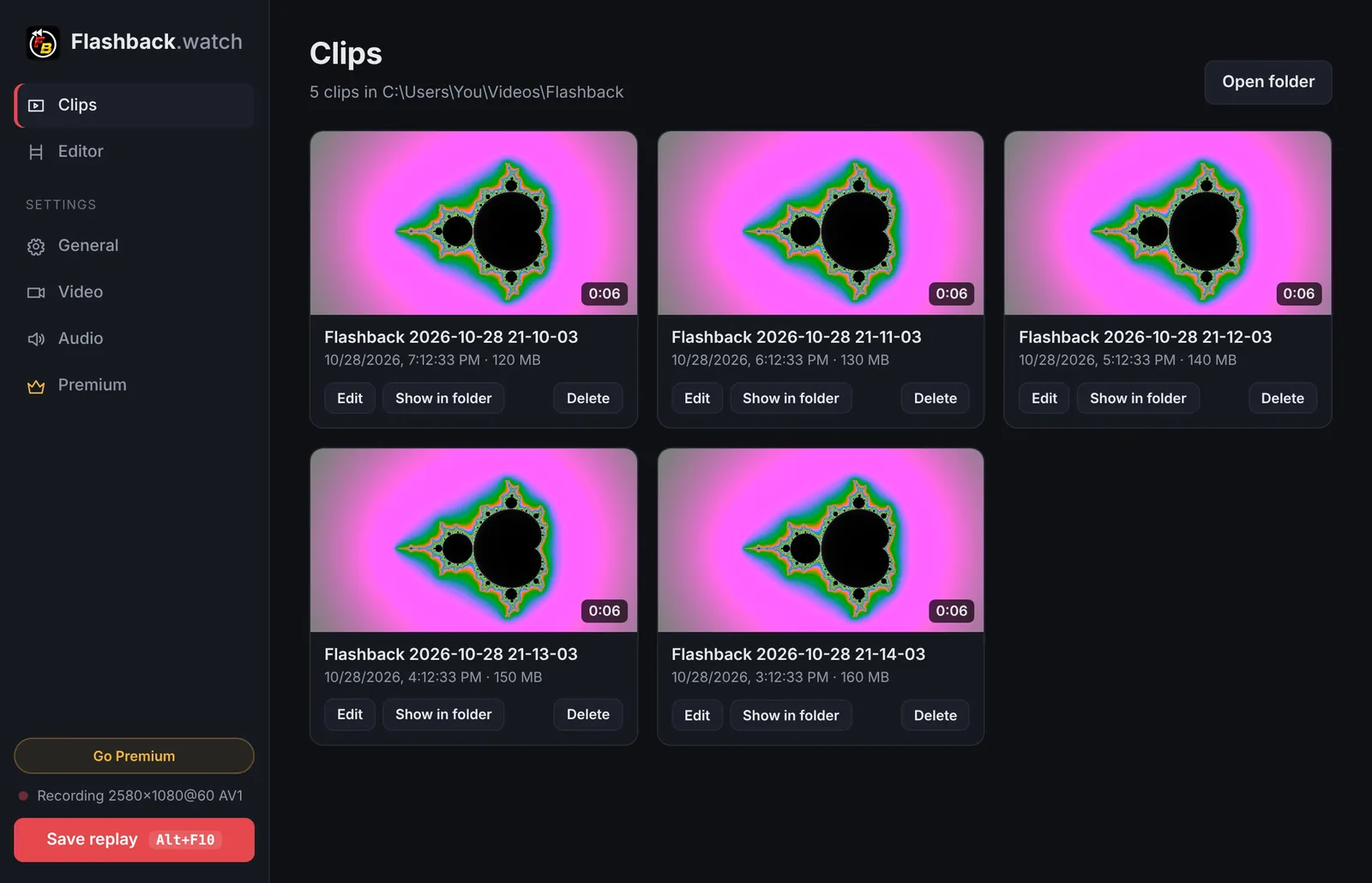
Flashback.watch quietly keeps the last moments of your game. Press one key to keep the clip, with game sound, voice chat and your mic, from as many audio devices as you use.
Windows 10 & 11 · NVIDIA, AMD & Intel graphics · under 1 MB installer · no account needed
Everything a replay tool should do. Nothing it shouldn't.
Built to stay out of your way until the moment you need it.
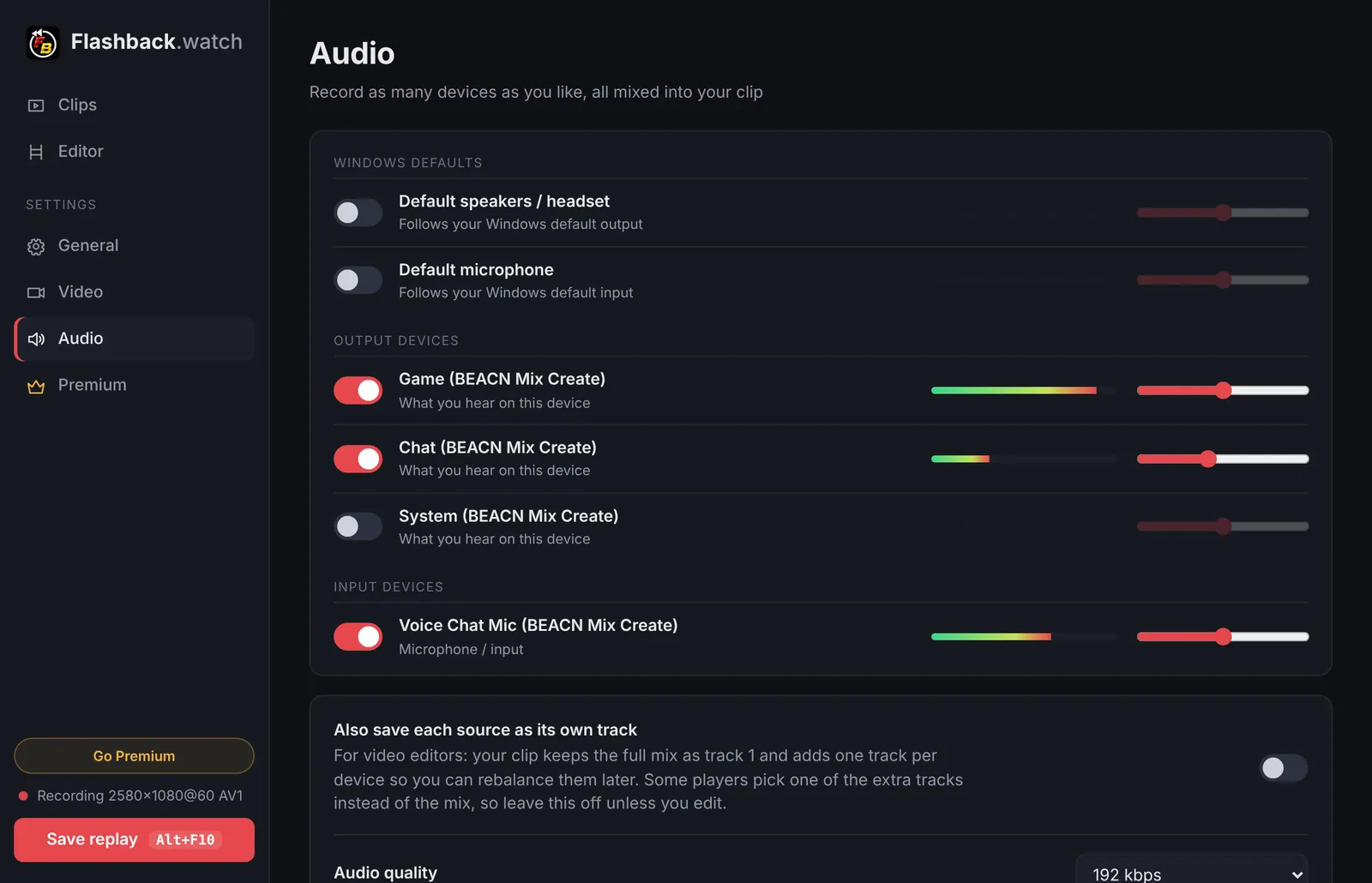
Every audio device, at once
Game on one output, friends on another, your mic, a second headset: record them all together. Most replay tools capture a single output; Flashback.watch captures as many as you pick, each with its own level.
One key, instant clip
Press Alt+F10 (or any hotkey you like) and the last 90 seconds are saved as an MP4. It works in borderless and most fullscreen games, with a sound so you know it worked.
Barely-there overhead
Frames are captured and encoded on your graphics card's built-in video engine (NVENC, AMD AMF or Intel Quick Sync) and never touch the CPU. Saving is near-instant.
H.264, HEVC or AV1
Pick H.264 for clips that play everywhere, or AV1 for the best quality per megabyte on RTX 40, Radeon RX 7000 and Intel Arc cards. Up to 144 fps at native resolution.
Editor built in
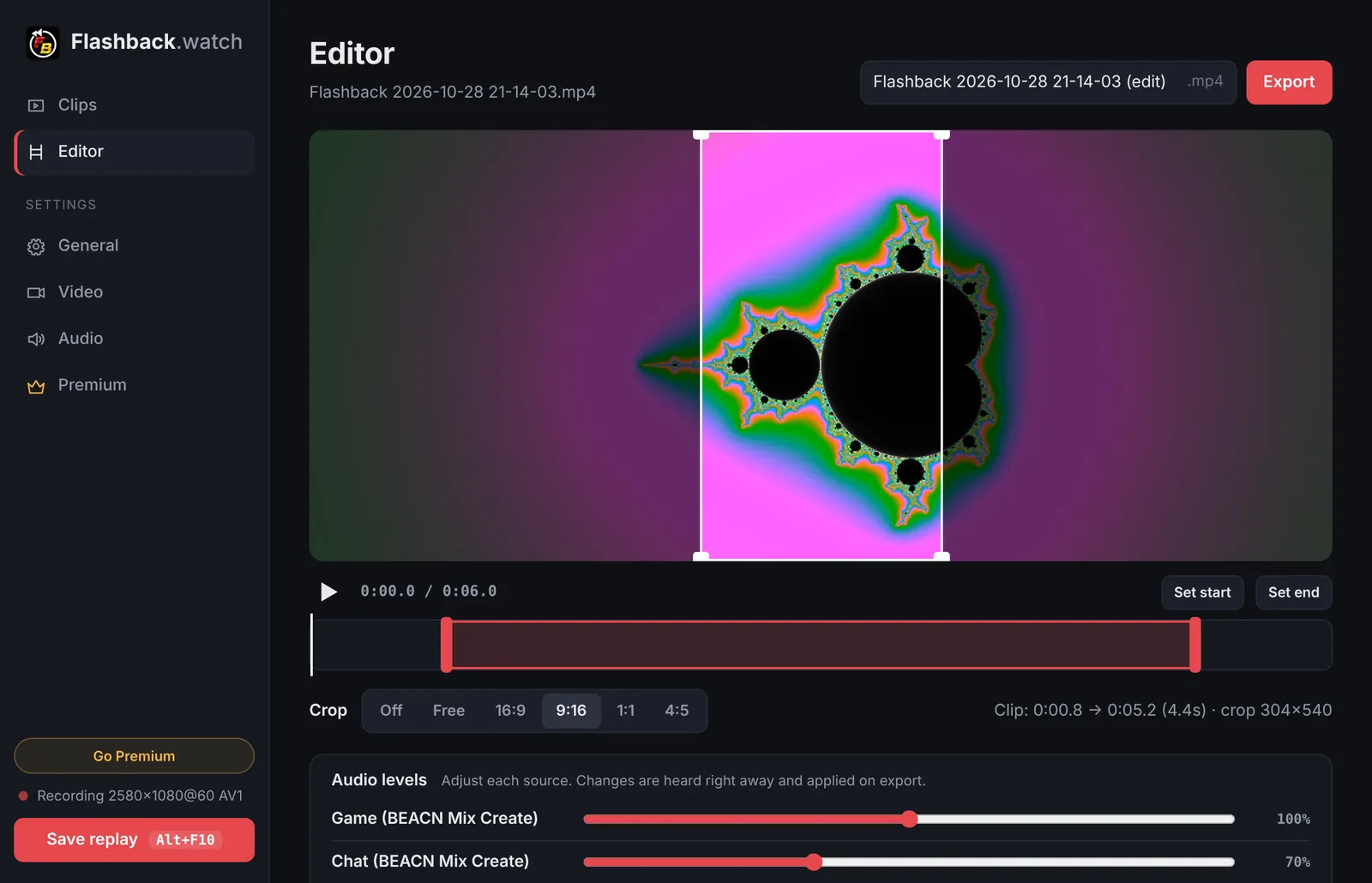
Trim to the frame, crop to 9:16 for TikTok and Shorts, rebalance each audio source, name it and export, all without leaving the app.
Private and lightweight
No account, no uploads, no tracking. Clips stay in your Videos folder. The whole app is under 2 MB and sits quietly in the tray.
Make it post-ready in seconds
Open any clip, drag the handles to the moment that matters and export. The editor uses your graphics card too, so it's quick.
- Frame-accurate trimming
- Crop presets for 16:9, 9:16, 1:1 and 4:5, or free-form
- A volume slider for every audio source, heard live while you preview
- Name the clip right where you export it
Hear exactly what happened
Turn on every device you use and watch the live meters. Clips get a clean mix that plays anywhere, and the editor lets you turn the game down or your friends up after the fact.
- Speakers, headsets, virtual cables and audio-mixer channels (like a BEACN's Game and Chat)
- Microphones and line inputs
- Optional separate tracks for Premiere, Resolve and other editors
Free to use. Premium when you want more.
Everything important is free. Premium gives you longer replays and clean, watermark-free clips.
Free
Forever
- Replays up to 90 seconds
- Every audio device, with per-source levels
- Trim, crop & export editor
- H.264, HEVC & AV1 hardware encoding
- Small flashback.watch watermark
Premium
About $1.67 a month · cancel any time
- Replays up to 5 minutes
- No watermark on clips or exports
- Everything in Free
- Posting to YouTube, TikTok & more: coming soon
Install the free app first. After checkout you'll get a license key and a one-click Activate button. Prices in USD, billed yearly by Stripe.
Questions
Will it slow down my games?
It's designed not to. Capture, colour conversion and encoding all happen on your graphics card's dedicated video engine, separate from the parts that render your game. The replay is kept in memory: about 150 MB for a minute at the default quality.
What do I need to run it?
64-bit Windows 10 or 11 and an NVIDIA, AMD or Intel graphics card with up-to-date drivers. Almost any GPU from the last decade has the hardware video encoder Flashback.watch uses. AV1 needs an RTX 40-series, Radeon RX 7000-series or Intel Arc card; other cards record H.264 or HEVC.
Which audio can it record?
Any playback device Windows knows about (speakers, headsets, virtual cables, mixer channels) and any input such as microphones. Pick as many as you like; they're mixed into your clip and each one gets its own volume slider in the editor.
Where do my clips go? Are they uploaded?
Clips are saved to Videos\Flashback on your PC (you can change the folder). Nothing is uploaded, and there's no account.
How do I get Premium?
Install the free app, then click Go Premium in the app or here. After checkout you'll see your license key with an Activate in Flashback.watch button. You can also paste the key into the app's Premium page.
Can I cancel?
Any time, from Premium → Manage subscription in the app. Premium stays active until the end of the year you paid for.
The hotkey doesn't work.
Another app may already use it. GeForce Experience and the NVIDIA App use Alt+F10 for their own replay. Turn theirs off, or pick a different key under General → Save replay hotkey.
Windows says "Windows protected your PC" when I install.
That warning appears for new apps that Windows hasn't seen many times yet. Click More info → Run anyway. The installer only installs Flashback.watch for your user account and doesn't need administrator rights.
Something else? Ask us on X, where questions and feature requests are welcome.
Never miss the play again.
Free download for Windows 10 & 11.
Version 0.4.3